
Full Visual Global Elements, One-Click Connector Upgrades, and Project Visibility
Global Elements support in ACB started with a dashboard and conversational management through MuleSoft Vibes. This release completes the story — full visual CRUD, bulk connector upgrades, and two new ways to understand what’s inside your project without leaving the IDE.
Managing Global Elements — The Full Visual Experience
The earlier release gave you a Global Elements panel to view your configurations and MuleSoft Vibes to create and manage them conversationally. But not every developer wants to talk to an AI to add an HTTP Listener config. Sometimes you just want a form.
Now you can add, edit, and delete global configurations directly from Global Elements without editing XML or opening a Vibes session. Click New Configuration to browse categorized types — connector configurations, TLS contexts, object stores, caching strategies, API Autodiscovery, global error handlers, import project references, and properties files. Fill out a form, save, and the element is written to your configuration file with the correct structure. Edit any element through the More Actions menu with a form editor that includes field validation. Delete with a single click and confirmation.
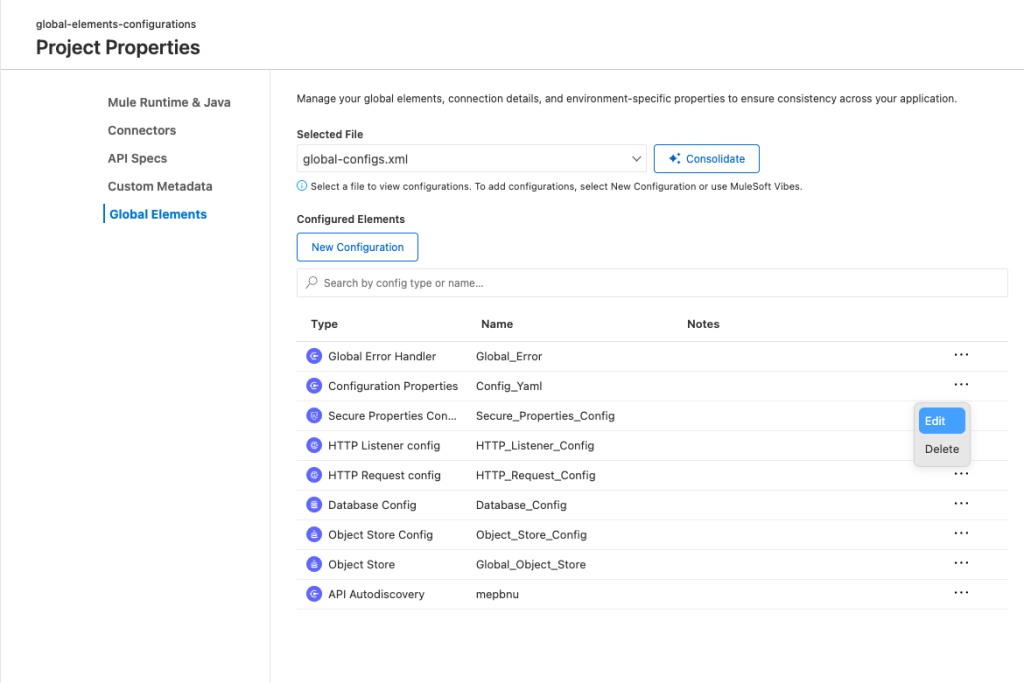
Two additions round out the experience. Consolidate moves scattered global elements from multiple config files into a single global-configs.xml and updates all flow references automatically — particularly useful for Studio-migrated projects. And secure property encryption now happens inline — generate encrypted values from the same view where you manage your configurations.
MuleSoft Vibes still works exactly as before. The difference is that now you choose your workflow: visual forms, natural language through Vibes, or direct code editing with dashboard navigation to the exact source location.
Why it matters: Global Elements management is now complete in ACB — visual, conversational, and code-level, with no XML required for any path.
Setting Up Secure Properties from Global Elements
Securing credentials in a Mule application has traditionally meant working outside the IDE — running the secure properties JAR from the command line to generate encryption keys and encrypted values, then manually wiring the results into your config XML and properties files.
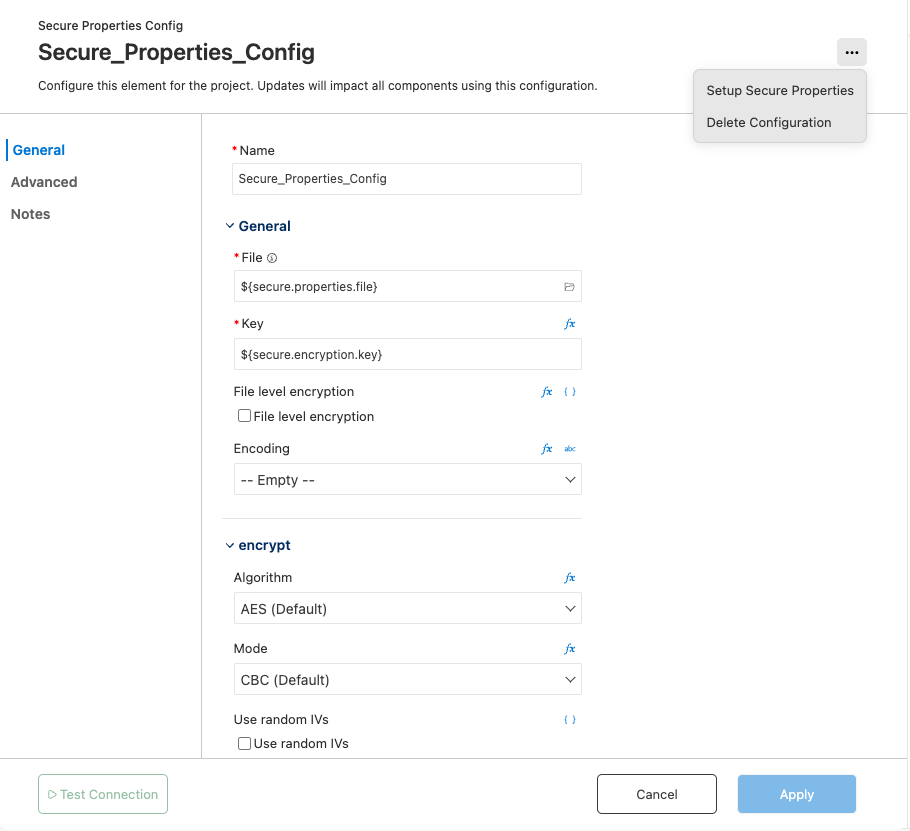
From the Secure Properties Config editor in Global Elements, click the More Actions menu and select Setup Secure Properties. This invokes the secure properties skill, which walks you through the full setup: encryption algorithm, key, file references, and encrypted value generation — all within ACB. The form editor shows your configuration with fields for the secure properties file path (${secure.properties.file}), encryption key (${secure.encryption.key}), file-level encryption options, encoding, and algorithm settings. No command-line steps, no context switching.
Why it matters: Secure properties setup is now a guided, in-IDE experience — from encryption configuration to encrypted value generation, without leaving Global Elements.
Upgrading All Connectors with One Click
Keeping connectors current across a project meant updating them one at a time — checking each version, finding the latest compatible release, and applying the change individually. For projects with a dozen connectors, that’s a dozen manual updates.
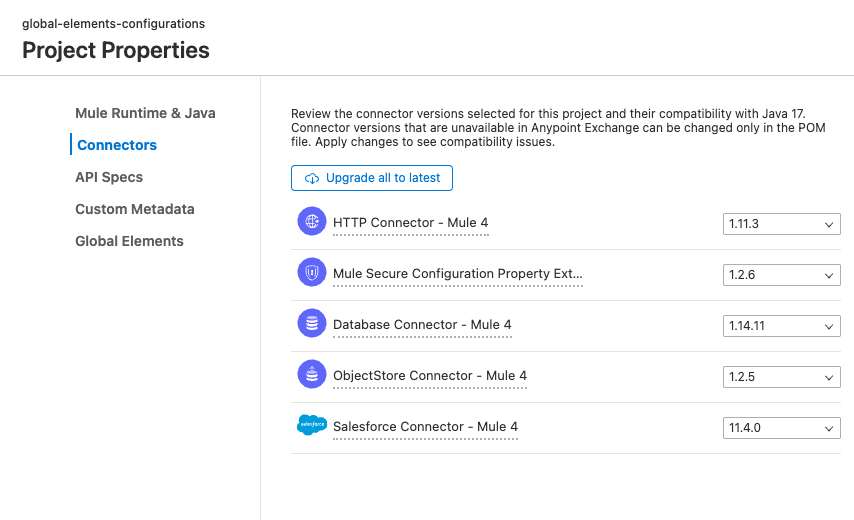
From Project Properties > Connectors, click Upgrade all to latest. ACB selects the latest version compatible with your project’s Mule runtime and Java version, staying within each connector’s current major version. Review the selected versions, click Apply, and confirm. Every connector updates in one operation. If you need a major version change for a specific connector, you can still select it manually from the dropdown before applying.
Why it matters: Connector maintenance goes from a per-connector chore to a single action, keeping projects current without the risk of missing an outdated dependency.
Viewing Project Dependencies
Understanding what a Mule project depends on used to mean opening pom.xml and reading through Maven coordinates — artifact IDs, group IDs, version numbers, and nested dependency trees that only make sense if you’re fluent in POM structure.
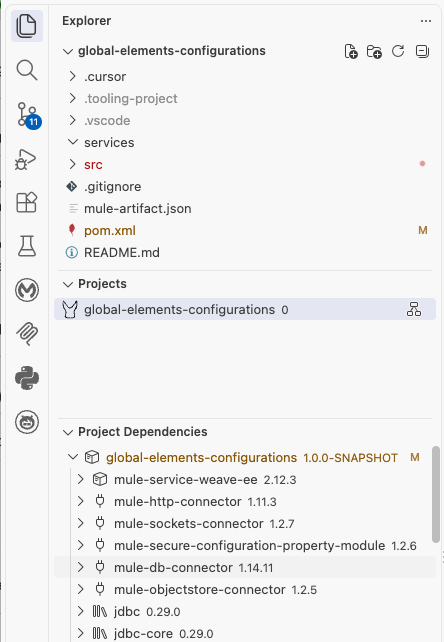
Open the Project Dependencies section in Explorer, or use the Command Palette (MuleSoft: Show Project Dependencies). ACB displays every Exchange asset and its version in an expandable tree. Expand any entry to see its nested dependencies — the other Exchange assets it pulls in. No POM inspection needed.
Why it matters: Full visibility into your project’s dependency tree without leaving the IDE — useful for auditing versions, understanding transitive dependencies, and onboarding onto unfamiliar projects.
Find Flows That Reference a Subflow
Renaming or modifying a subflow raises an immediate question: what breaks? Until now, the answer required searching across config files manually — and hoping you didn’t miss a reference in a test file.
Right-click any subflow on the canvas and select Find Flows That Reference a Subflow, or use Shift+Alt+F12. ACB lists every flow reference that points to the selected subflow — including references in other configuration files and in MUnit tests. Click any result to jump directly to that location.
Why it matters: Impact analysis before making changes, with full coverage across config files and tests — no manual searching.
Get Started
Download the latest Anypoint Extension Pack (v1.27.0) from the Visual Studio Marketplace. For the full list of changes, see the release notes.


