As enterprises scale their AI initiatives, the need for a centralized, governed layer between applications and large language models (LLMs) has become critical. MuleSoft’s AI Gateway, built on the battle-tested Flex Gateway, provides a unified entry point to manage, secure, and monitor LLM traffic across your organization.
Setting up MuleSoft’s AI Gateway
You will discuss how to set up MuleSoft AI Gateway from scratch: configuring LLM providers, applying governance policies, setting up intelligent routing, and testing the end-to-end flow. By the end of this tutorial, you’ll have a fully functional AI Gateway that:
- Exposes a single, OpenAI-compatible endpoint for your developers
- Routes requests to OpenAI, and Google Gemini based on semantic rules
- Enforces token rate limiting and prompt injection protection
- Tracks token usage by business group and client application
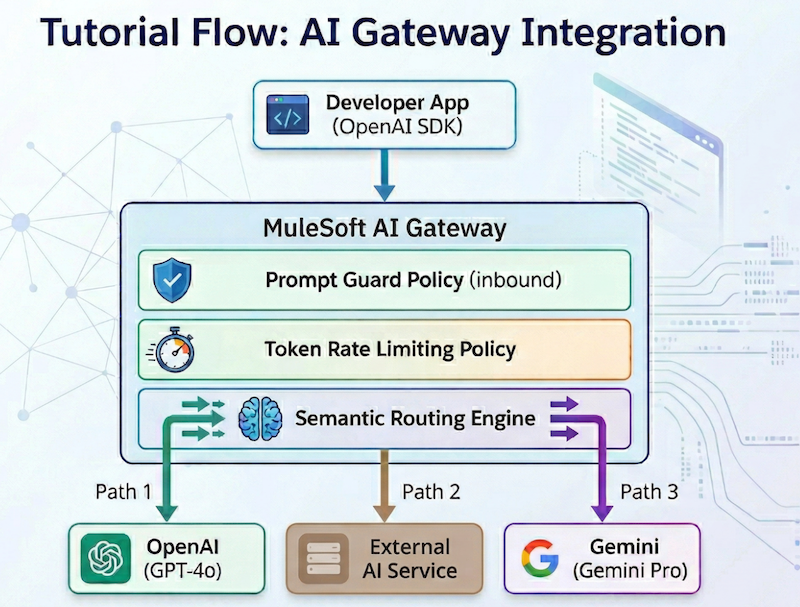
| Architecture overview: MuleSoft’s AI Gateway functions as a centralized governance layer, leveraging the robust infrastructure of Flex Gateway to bridge the gap between application developers and various large language model (LLM) providers. By providing a unified, OpenAI-compatible endpoint, it simplifies the developer experience while ensuring consistent organizational control over AI traffic. |
How to set up your Flex Gateway
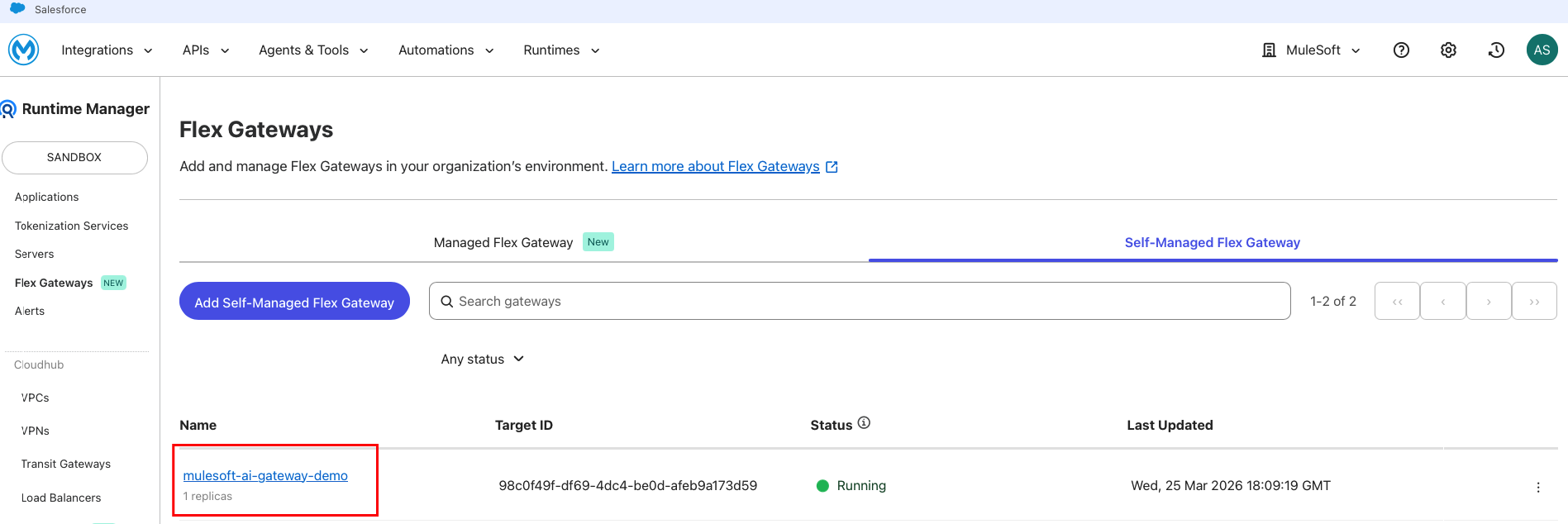
Before creating the LLM Proxy, you need a running Flex Gateway instance. If you already have Flex Gateway deployed, skip to Step 2. This tutorial uses Self-Managed Flex Gateway in Connected Mode, which gives you full control over the infrastructure while retaining centralized management through Anypoint Platform.
Create an LLM Proxy and Configure Routes
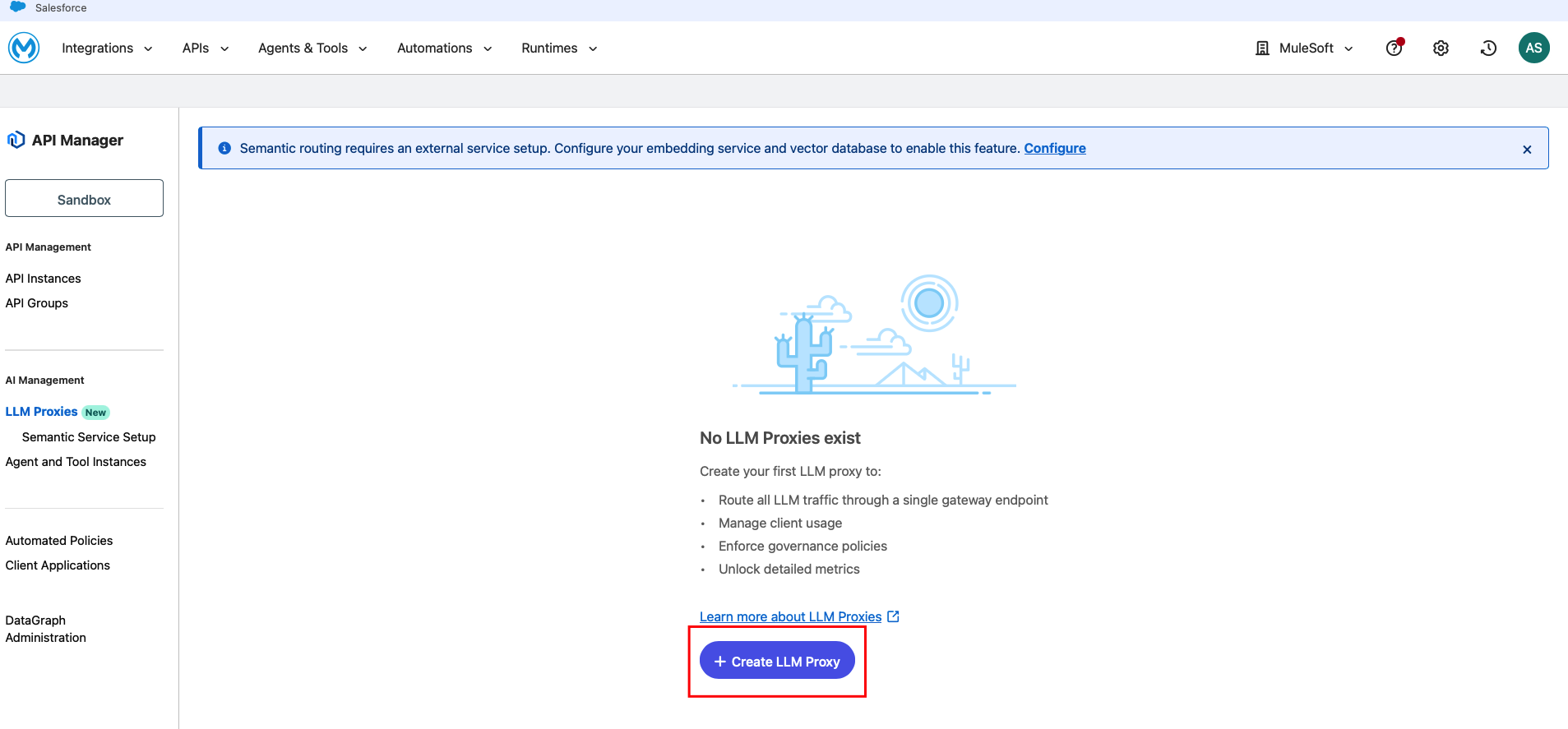
The LLM Proxy creation is a guided wizard with four stages: AI app > Inbound > Gateway > Outbound. This single wizard configures your endpoint, selects the gateway, and sets up LLM provider routes.
Inbound
- Navigate to API Manager in Anypoint Platform
- On the left navigation under AI Management, click LLM Proxies
- Click and create LLM Proxy
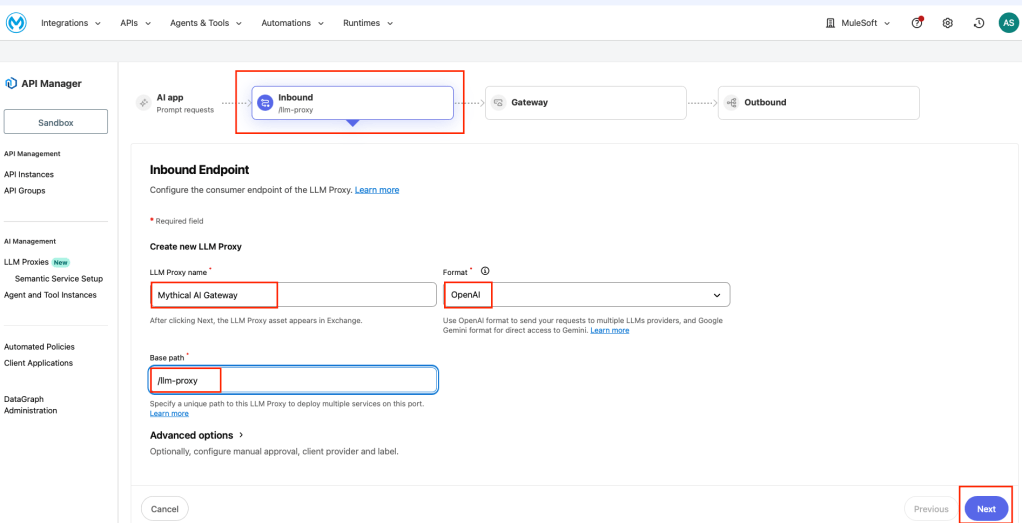
On the Inbound Endpoint page, configure:
- LLM Proxy name: Mythical AI Gateway
- Format: OpenAI (uses the OpenAI API format as the API contract)
- Base path: /llm-proxy
Once you’ve done that, click Next.
Gateway selection
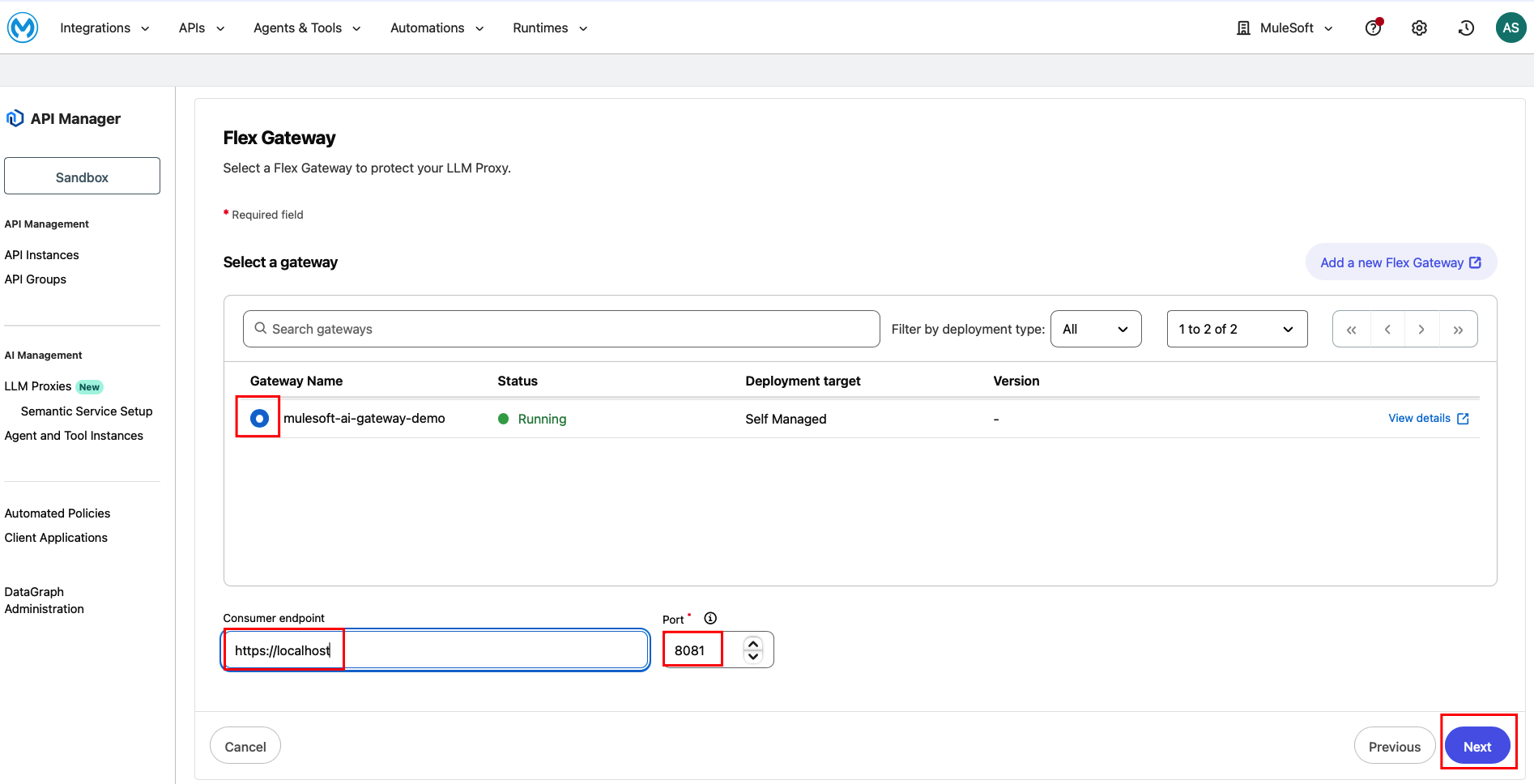
On the Flex Gateway page, select your running gateway from the list: Gateway Name: mulesoft-ai-gateway-demo (Status: Running, Deployment target: Self Managed). Next, set the Consumer endpoint: http://localhost (Since Flex gateway is deployed locally). Then, set the Port: 8081. Click Next.
Outbound
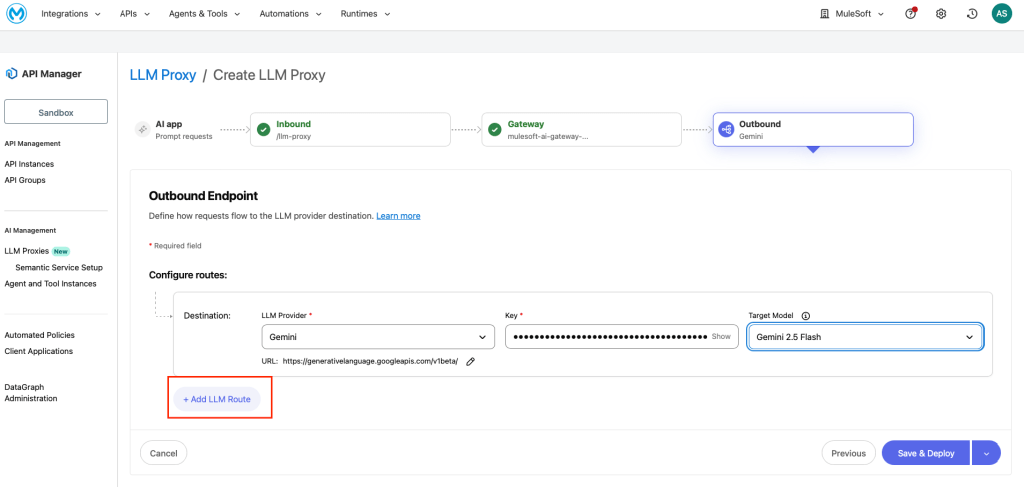
This is where you configure the LLM providers and routing strategy. Each route maps to a specific provider and model. Select the Routing strategy as Model-based.
Configure Route A (e.g. Google Gemini):
- LLM provider: Gemini
- Key: (paste your Google AI API key)
- Target model: Gemini 2.5 Flash
- URL: https://generativelanguage.googleapis.com/v1beta/ (auto-populated)
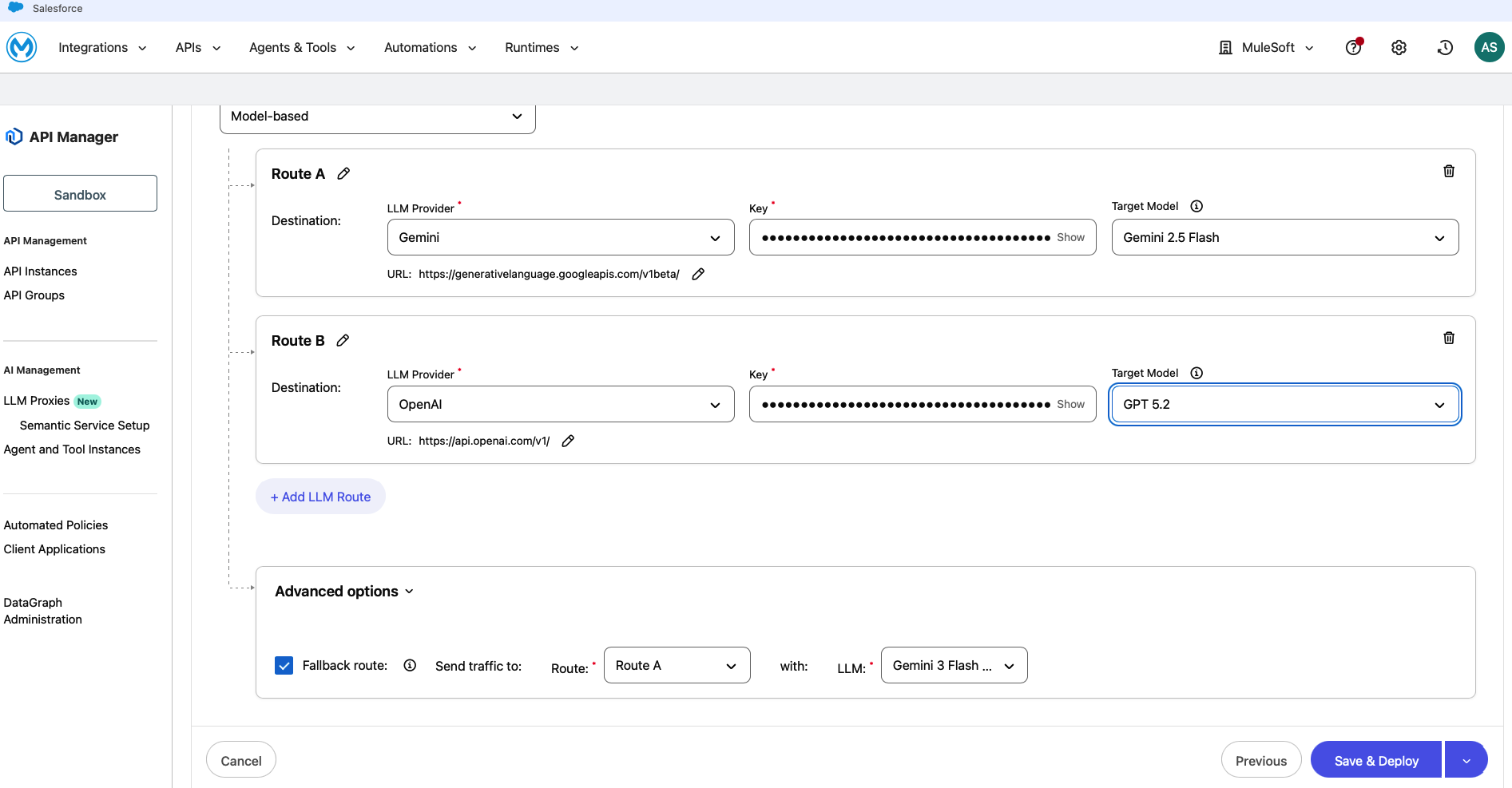
Configure Route B (e.g. OpenAI):
- LLM provider: OpenAI
- Key: (paste your OpenAI API key)
- Target model: GPT 5.2
- URL: https://api.openai.com/v1/ (auto-populated)
To add more routes, click + Add LLM Route. Under Advanced options, enable Fallback route:
- Send traffic to: Route A
- With LLM: Gemini 3 Pro
This ensures that if a primary route fails, traffic automatically falls back to a different model. Then, click Save & Deploy.
As a note, to get your API keys:
- OpenAI: Get your key from https://platform.openai.com/api-keys
- Gemini: Get a key from https://aistudio.google.com/apikey
Provider API keys are stored securely in the gateway. Developers never see or manage these keys; they authenticate using client credentials issued through API Manager.
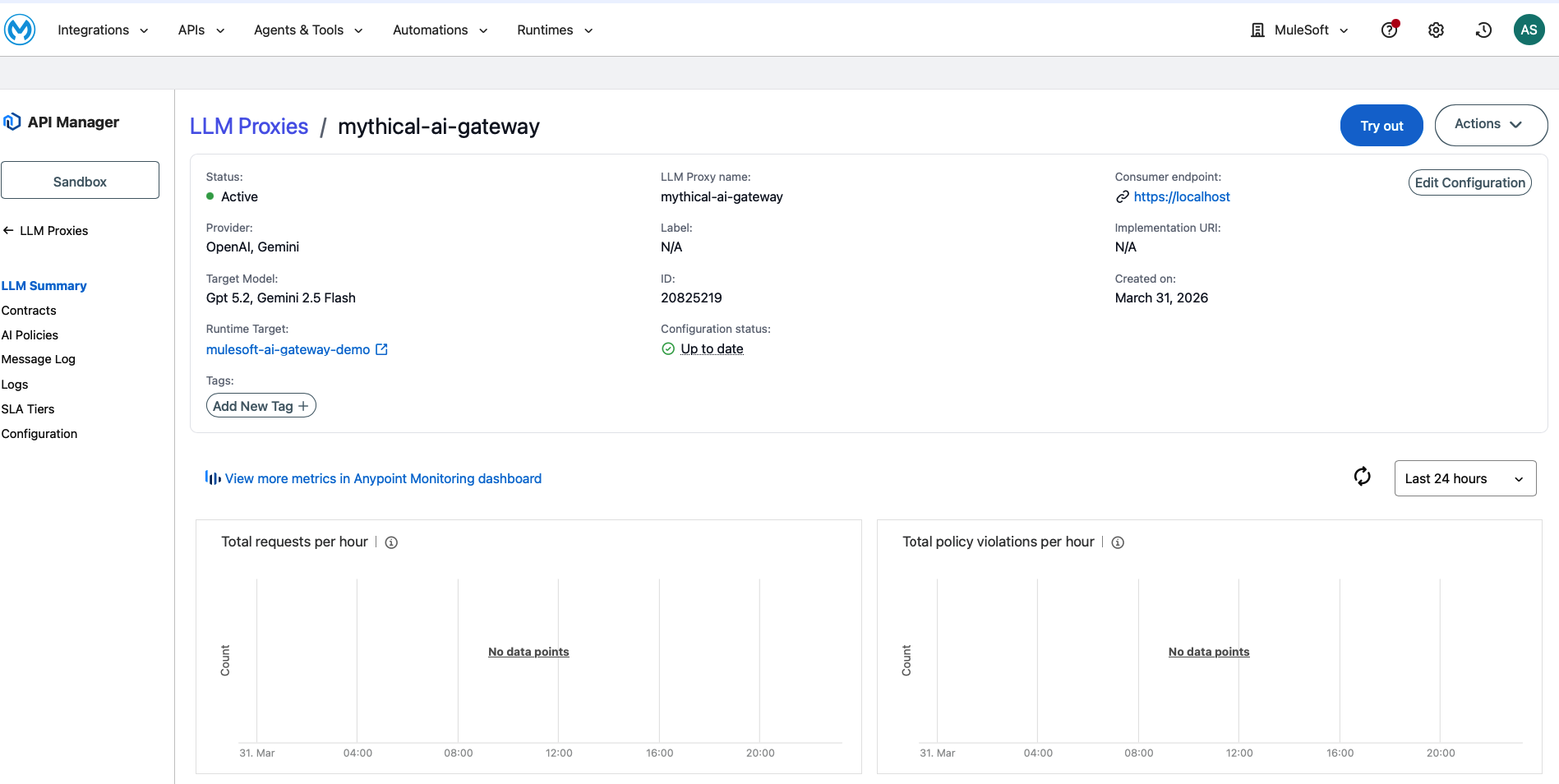
After the wizard completes, your LLM Proxy is deployed and you can access its configuration from API Manager > LLM Proxies > MuleSoft AI Gateway. The left navigation shows: LLM Summary, Contracts, AI Policies, Message Log, Logs, SLA Tiers, and Configuration.
Apply Governance policies
You can now apply the governance policy LLM Token Based Rate Limit. First, navigate to AI Policies in the left navigation of your LLM Proxy.
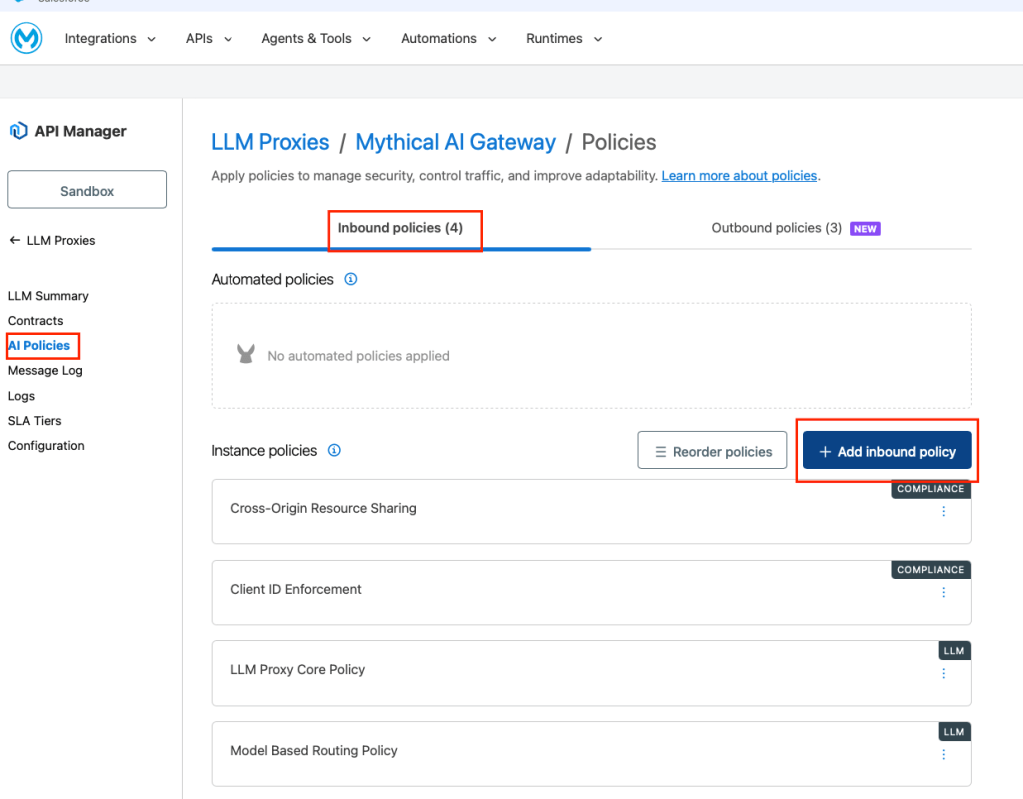
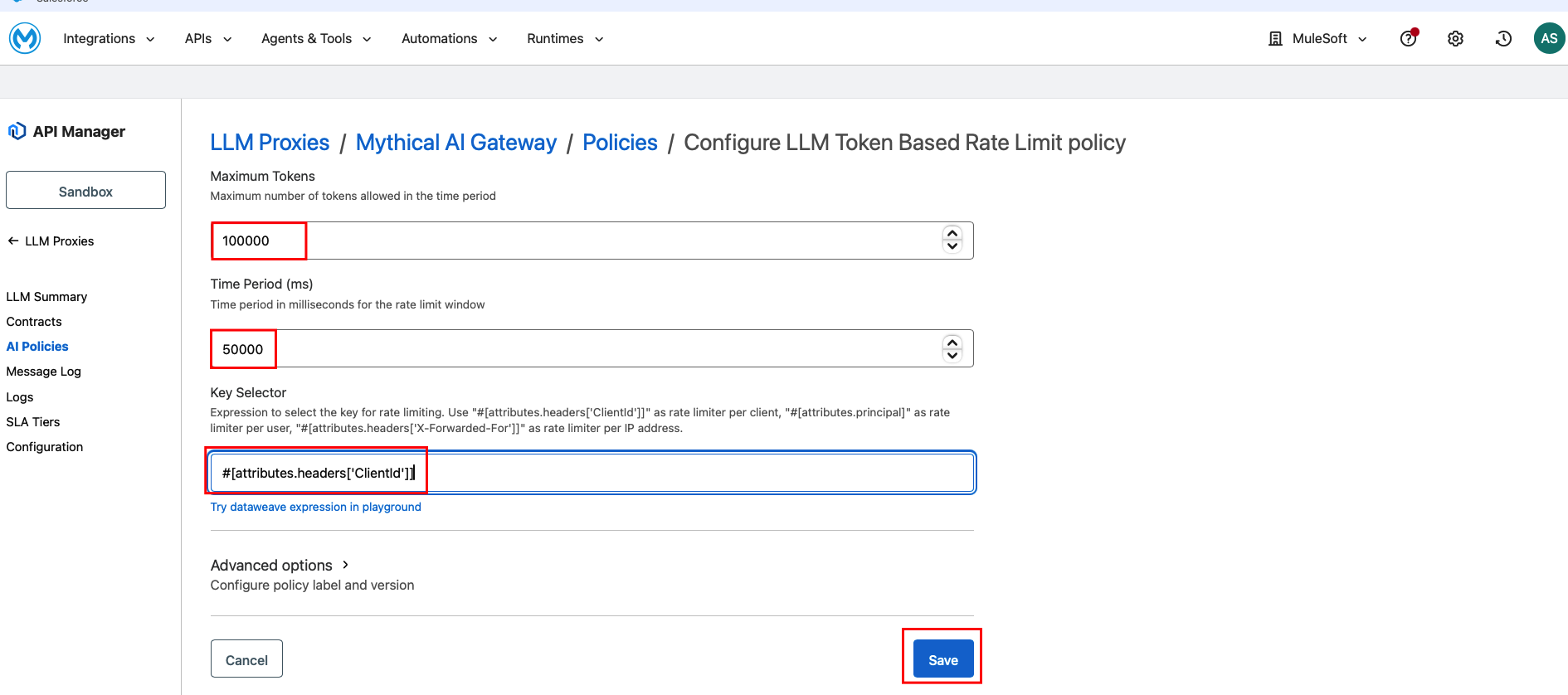
Click Add policy, search for “token,” and select LLM Token Based Rate Limit. Click Next. Configure the limits:
- Total Tokens per minute: 100,000
- Prompt Tokens per minute: 50,000
- Key selector: #[attributes.headers[‘ClientId’]]
Then, click Apply.
Register a Client Application
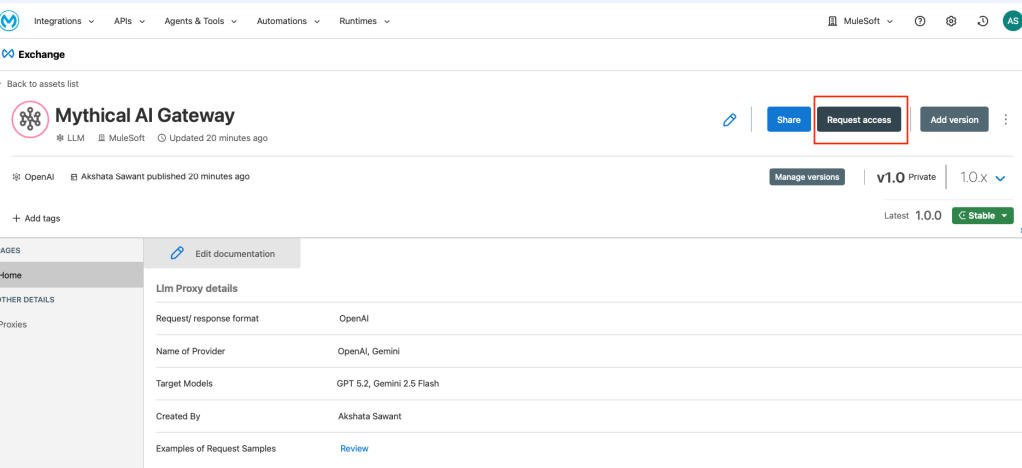
Developers need credentials to access the gateway. First, navigate to Exchange and find your Mythical AI Gateway API. Next, click Request Access. Then, you’ll need to create a new Client Application. Include the following elements:
- Name: Finance Forecasting Agent
- Description: AI-powered financial forecasting application for the Finance BG
- Business Group: Finance
- SLA Tier: Gold (if configured)
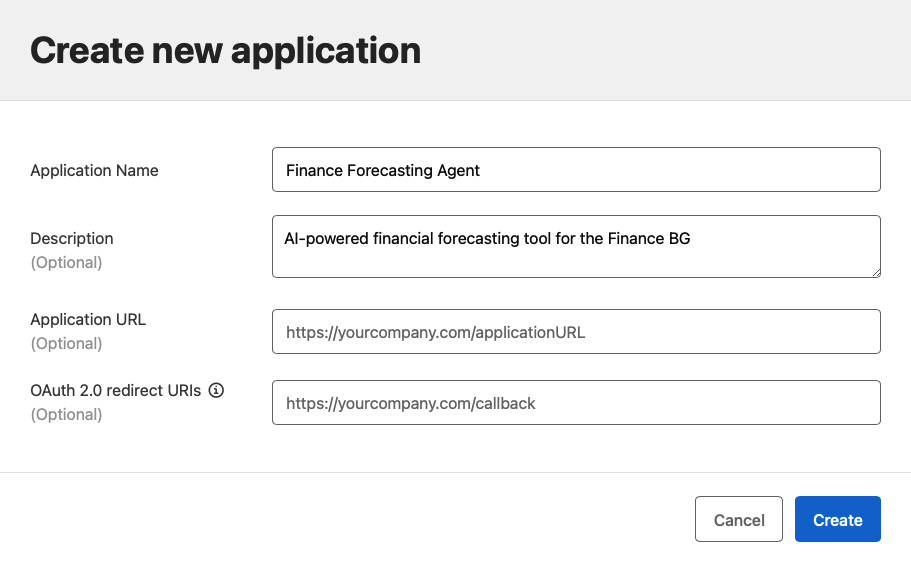
The platform generates a Client ID and Client Secret. Developers use these credentials with the standard authentication mechanisms supported by API Manager (OAuth 2.0, Client ID Enforcement, or Basic Auth).
Test the Gateway
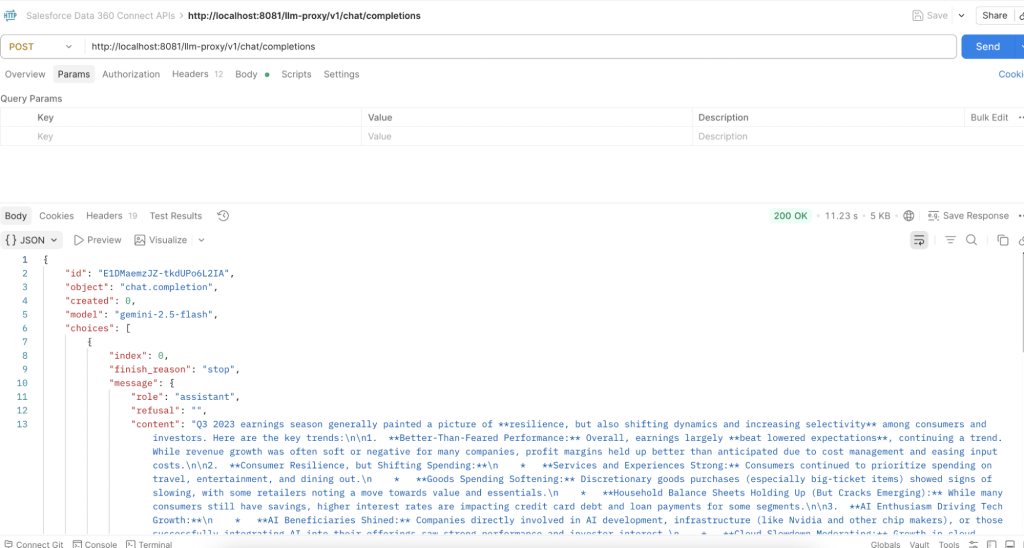
Using curl (local development): Replace YOUR_CLIENT_ID and YOUR_CLIENT_SECRET with the credentials from Step 5.
curl -s -X POST http://localhost:8081/llm-proxy/v1/chat/completions -H "Content-Type: application/json" -H "client_id: <INSERT_YOUR_CLIENT_ID>" -H "client_secret: <INSERT_YOUR_CLIENT_SECRET>" -H "ClientId: <INSERT_YOUR_CLIENT_ID>" -d '{"model":"gemini/gemini-2.5-flash","messages":[{"role":"system","content":"You are a helpful assistant."},{"role":"user","content":"Summarize the key trends in Q3 earnings."}]}'The URL breaks down as:
- Your Flex Gateway: http://localhost:8081
- The base path you configured in Step 2: /llm-proxy
- The OpenAI-compatible chat endpoint: /v1/chat/completions
Output:
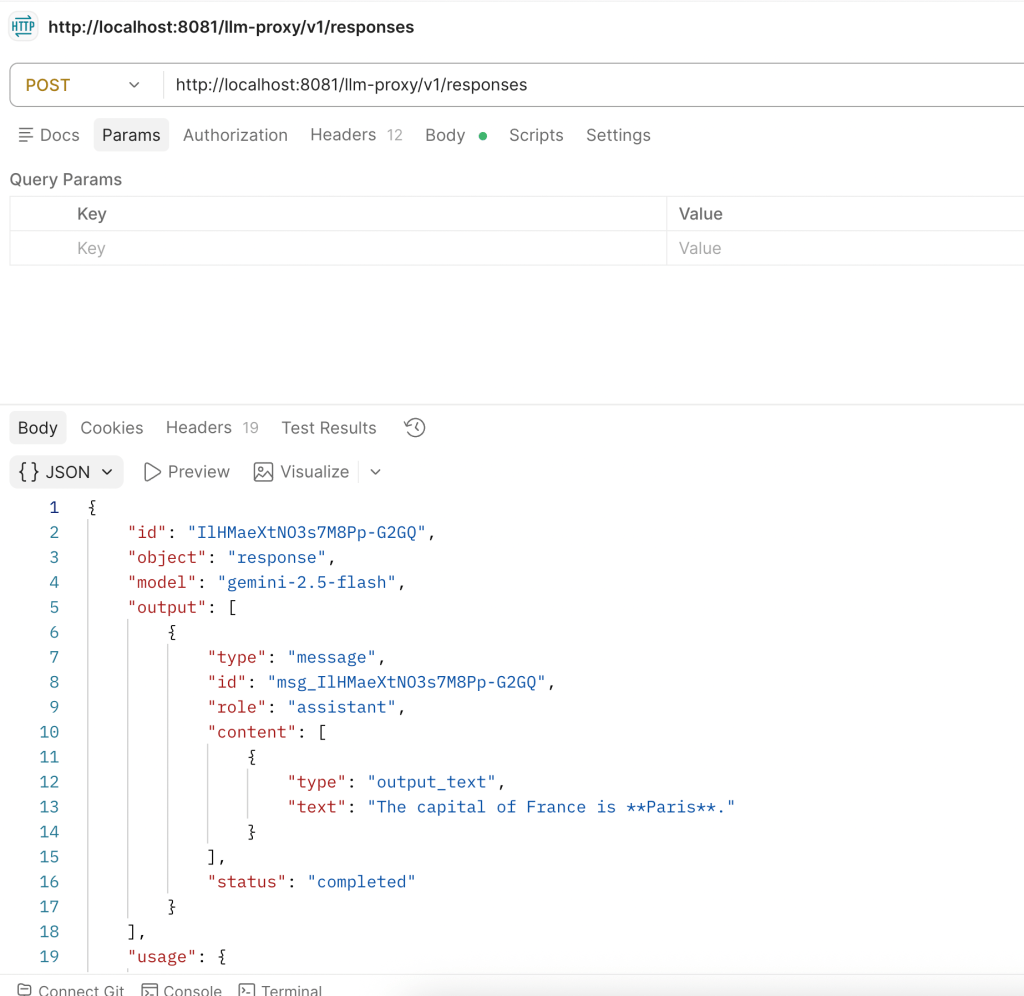
Using the /v1/responses API (curl): The Responses API uses a simpler format with input and instructions instead of a messages array:
curl -s -X POST http://localhost:8081/llm-proxy/v1/responses -H "Content-Type: application/json" -H "client_id: <YOUR_CLIENT_ID>" -H "client_secret: <YOUR_CLIENT_SECRET>" -H "ClientId: <YOUR_CLIENT_ID>" -d '{"model":"gemini/gemini-2.5-flash","input":"What is the capital of France?"}'The response uses a different structure than Chat Completions. The output is in output[0].content[0].text instead of choices[0].message.content.
Using the OpenAI Python SDK (optional):
from openai import OpenAI

client = OpenAI(
   base_url="http://localhost:8081/llm-proxy/v1",
   api_key="unused",
   default_headers={
       "client_id": "<YOUR_CLIENT_ID>",
       "client_secret": "<YOUR_CLIENT_SECRET>",
       "ClientId": "<YOUR_CLIENT_ID>"
   }
)

print("=" * 60)
print("TEST 1: Chat Completions API")
print("=" * 60)

response = client.chat.completions.create(
   model="gemini/gemini-2.5-flash",
   messages=[
       {"role": "system", "content": "You are a helpful assistant."},
       {"role": "user", "content": "What are the key benefits of API governance?"}
   ]
)

print(response.choices[0].message.content)
print(f"\nTokens used: {response.usage.total_tokens}")

print("\n" + "=" * 60)
print("TEST 2: Responses API")
print("=" * 60)

response = client.responses.create(
   model="gemini/gemini-2.5-flash",
   instructions="You are a concise financial analyst.",
   input="What are the top 3 risks in the current market?"
)

print(response.output[0].content[0].text)
print(f"\nTokens used: {response.usage.total_tokens}")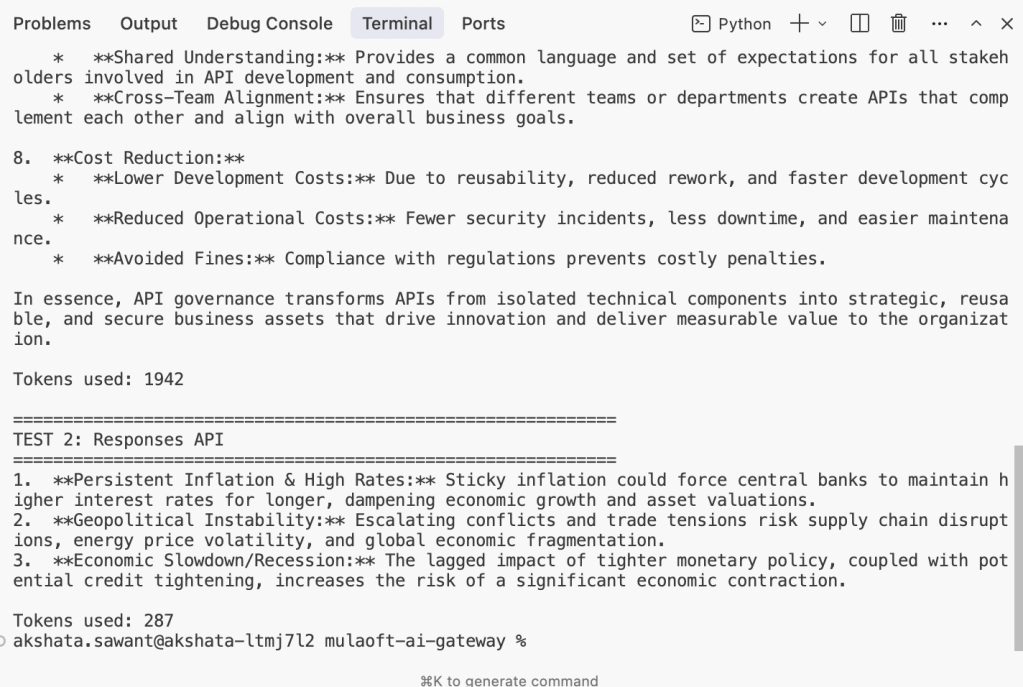
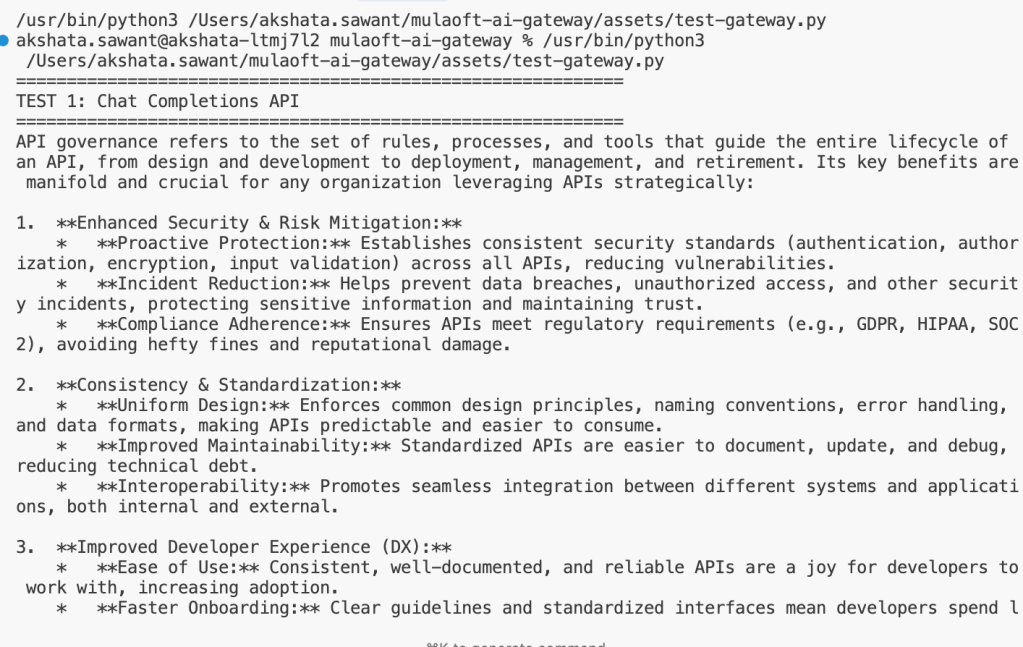
Both APIs use the same client object. Your developers use the same OpenAI SDK they already know. The only change is the base_url pointing to the gateway instead of directly to OpenAI. Both APIs work across all configured providers, and the gateway handles the translation.
Monitor usage
First, navigate to the Usage Dashboard in API Manager. Then, view token consumption broken down by:
- Business group: See which departments are consuming the most tokens
- Client application: Drill into individual AI projects
- Model: Understand which models are being used and their token distribution
Last, set up overage alerts to receive Slack notifications when consumption approaches limits.
What’s next for your AI Gateway
In this tutorial you learned how to deploy an AI gateway that provides unified provider routing, token governance, prompt protection, and usage observability, all without touching application code. Your developers hit one endpoint, use the SDK they already know, and never manage a provider API key again.
From here, explore SLA tiers to give different teams different token budgets, or chain AI policies to build more sophisticated guard rails. The architecture you’ve set up today scales from a single prototype to an enterprise-wide AI platform. To learn more, check out the following resources: